VOMirrorVO Support
iPhone · iPad · Wi-Fi

Your screen on the TV. Chromecast or not.

MirrorVO mirrors your iPhone or iPad screen to the TV over your own Wi-Fi. If you have a Chromecast, pick it from the list. If you don't, use the TV's own web browser — you type a short address once.

Download on the App Store No account · No ads · No data collected
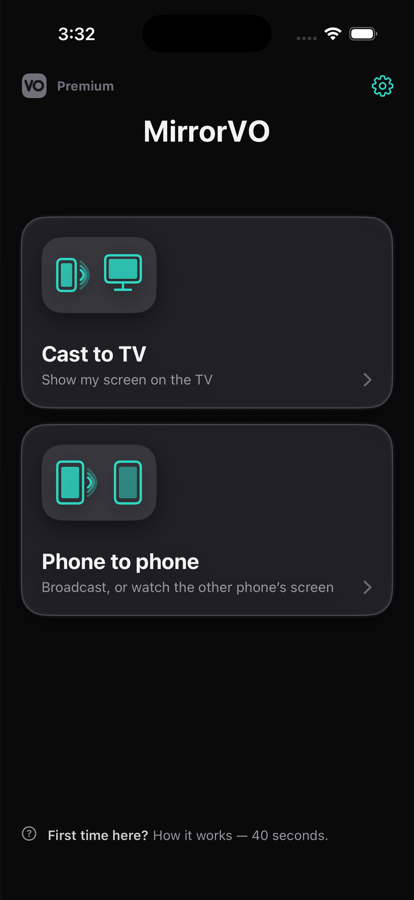
MirrorVO home screen: Cast to TV, Phone to phone

No ads. None.

Not on launch, not before a broadcast, not on the purchase screen. Not in free use either.

No account

Nothing to sign up for. Open it and start mirroring.

No data collected

Apple's own privacy label on our App Store page reads "Data Not Collected". The picture goes straight from your phone to the target; it never passes through our servers.

Two paths

It works without a Chromecast too

Most apps in this category require a Chromecast. MirrorVO offers a second path: the TV's own web browser.

1

With a Chromecast

A Chromecast, or a TV with Chromecast built in: pick it from the list and start.

2

Without one

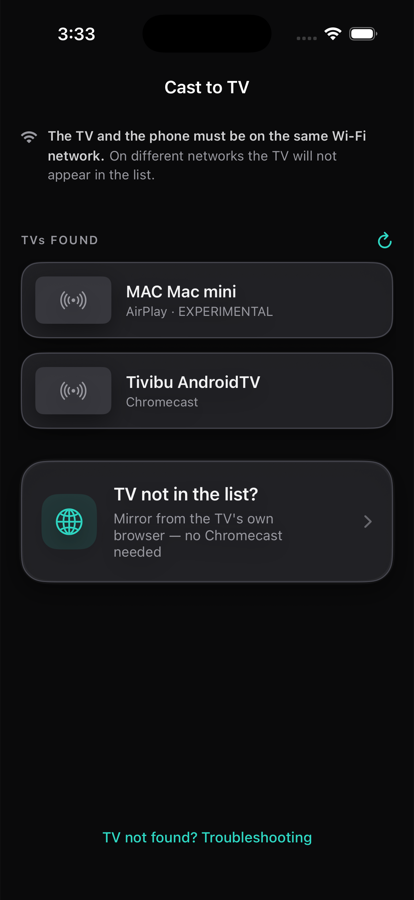
MirrorVO shows a short address, you type it on the TV once, and your screen appears. Tested on TCL, Philips and Samsung.

The TV list, with a row that reads: TV not in the list? Mirror from the TV's own browser
No TV required

Mirror to another phone

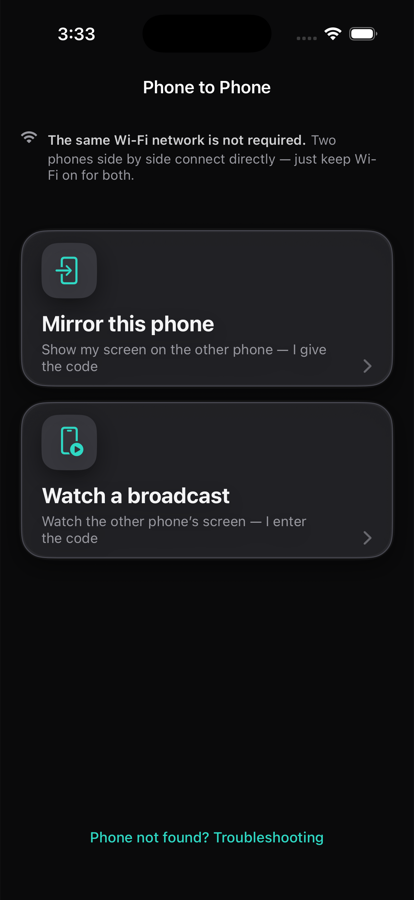
Two phones side by side connect directly — they don't even need to be on the same Wi-Fi network. One gives a code, the other enters it.

Phone to phone screen: mirror this phone, or watch a broadcast
Three steps

How it works

  1. 01

    Same Wi-Fi

    Put your phone and your TV on the same network.

  2. 02

    Pick your TV

    Choose it from the list, or take the browser path.

  3. 03

    Start Broadcast

    The picture can take 10-15 seconds to appear on the TV.

Only you can start it. iOS does not let apps begin screen broadcasting on their own — the system prompt needs your confirmation every time.

The honest part

What it cannot do

These are on our App Store page too. We would rather you knew before downloading, not after.

Netflix, Disney+
They appear black. That is the publisher's copy restriction, not a missing feature — no app can get around it.
Latency
It is not instant. Expect a short delay; that is the nature of this technology.
Miracast
The "Screen Mirroring" option in your TV's menu is Miracast. iPhone does not support Miracast, and no app can use it.
AirPlay
Apple does not let apps start AirPlay mirroring directly. On AirPlay TVs, use Screen Mirroring from Control Center.
Quality and price

The quality is your choice

Four levels up to 1080p60, nothing locked. If the network cannot carry it, quality steps down on its own and comes back up when it can — you do not need to do anything.

From your first broadcast
24 hours, completely free
  • Highest quality, no lock
  • Lowest latency
  • You see it working on your own TV before paying anything
After that
Monthly or yearly
  • The free 24 hours needs no card details
  • Prices vary by region and are shown in the app before purchase
  • Cancel any time in Settings → Apple Account → Subscriptions
30 languages

It opens in your phone's language

Türkçe, English, Deutsch, Español, Français, Русский, 日本語, العربية and 22 more. If your phone is in one language but you want the app in another: Settings → Language. The rest of your phone is unaffected.